

Set Color and Background Color for Affected Elements
Business Background
Dynamically customize colors based on user action or information from Salesforce that will affect the selected elements.
How to Guide
Note:
Prerequisite:
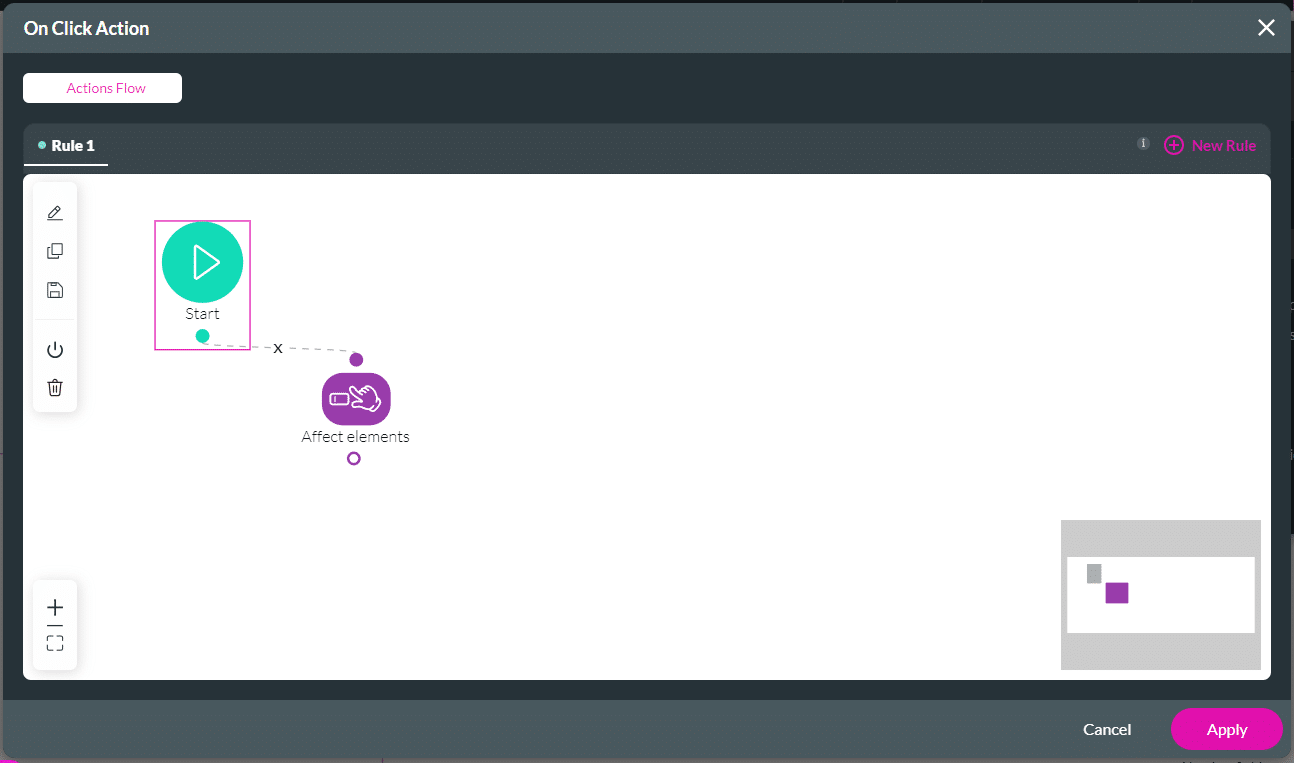
1. Add an Affected Element node to an element such as a button.
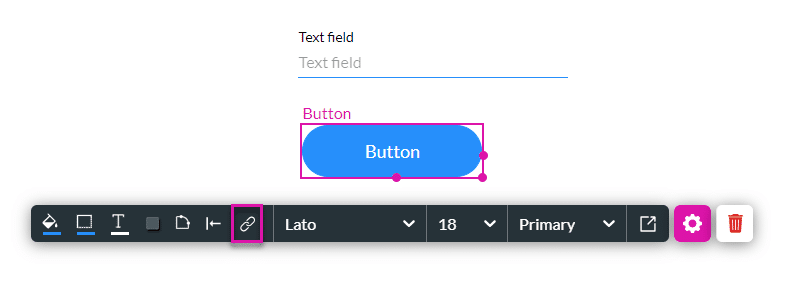
2. Alternatively, configure a condition.
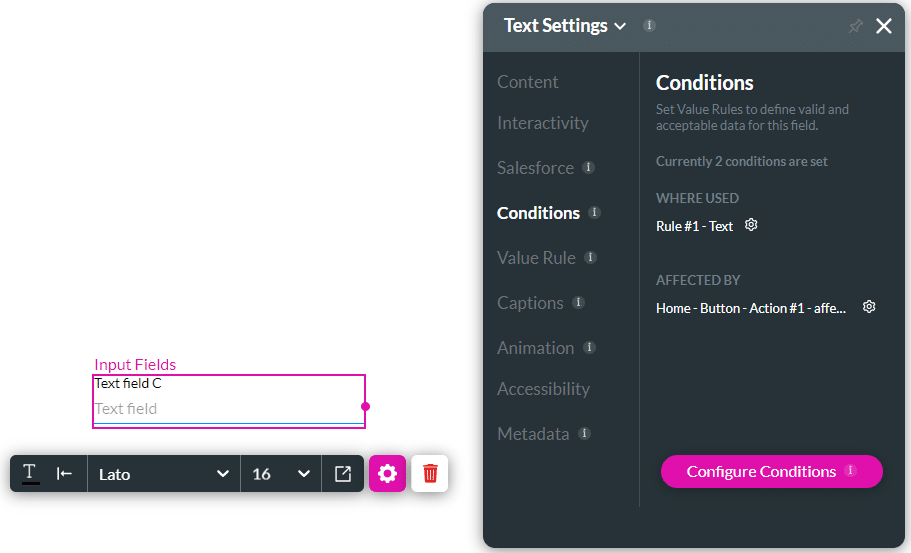
- Select the element/s you want to affect by clicking the relevant checkbox/es.
- These are all the elements in your project.
- If necessary, use the Search element/s field.
- Use the drop-down list to select an option:
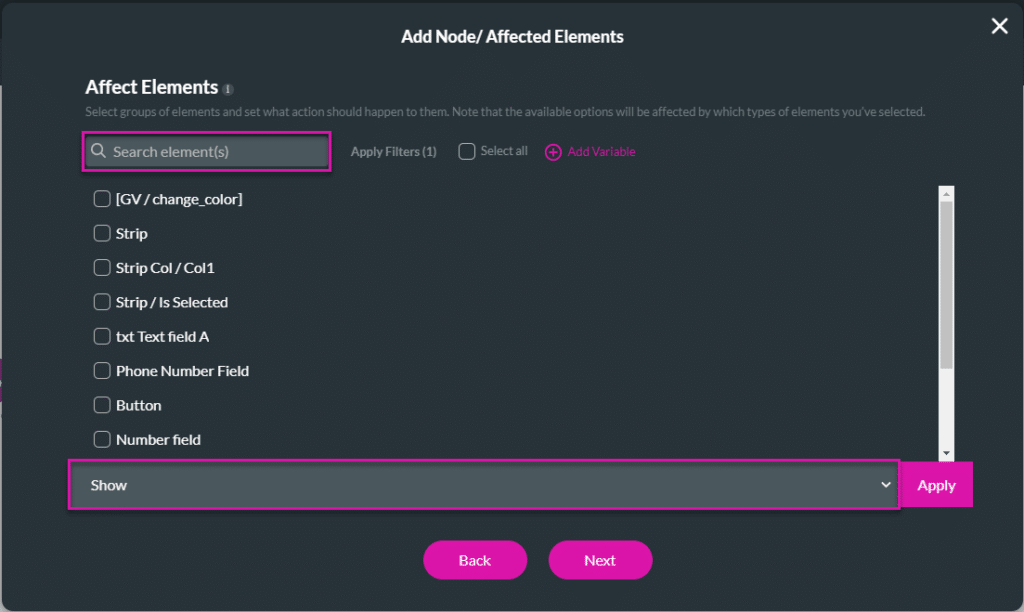
Set color
This will change the font color.
- Use the drop-down list to select the Set color option.
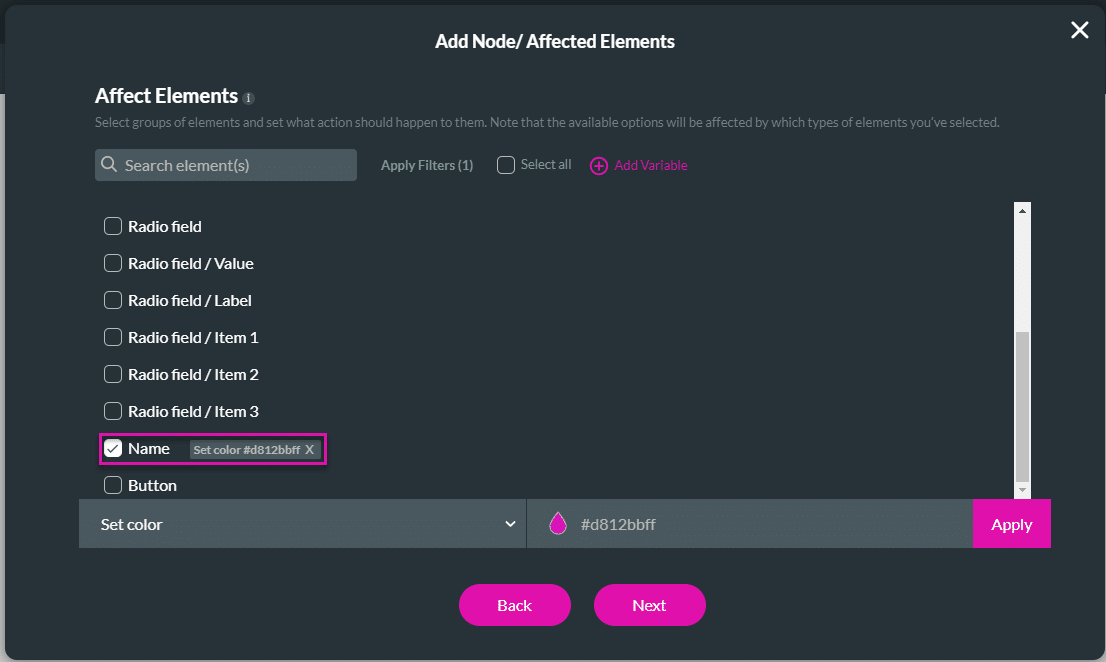
- Use the color selector to choose a color or enter the code in the field. In this example, the Name field’s color will change.
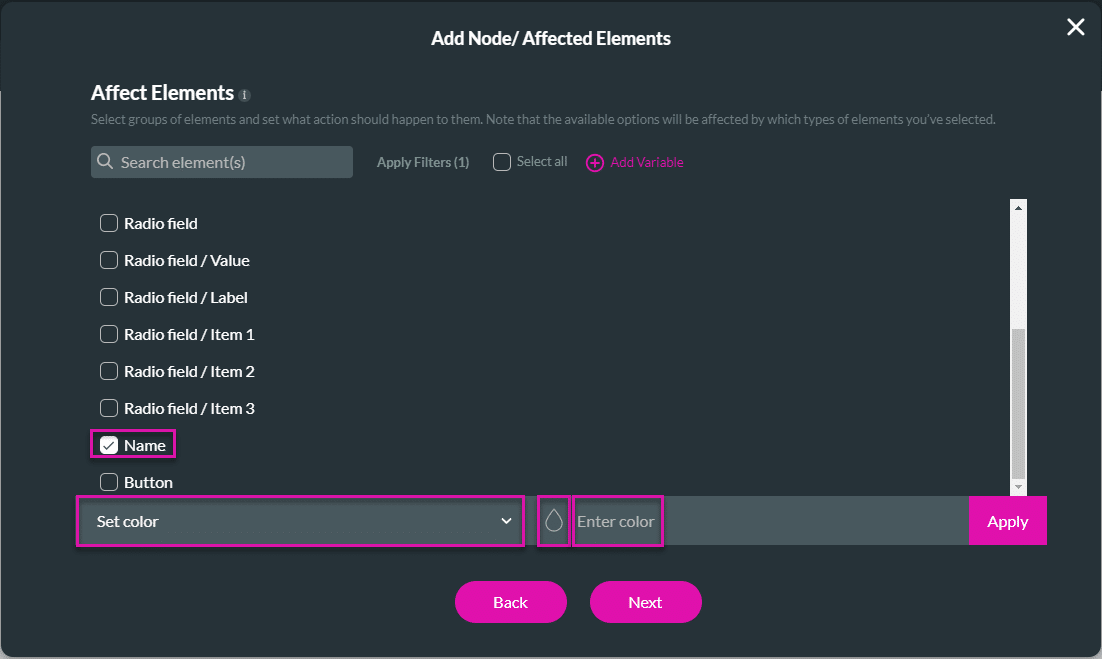
- Click the Apply button. The tag “Set color [code]” is added to the selected element/s.
- Click the Next button.
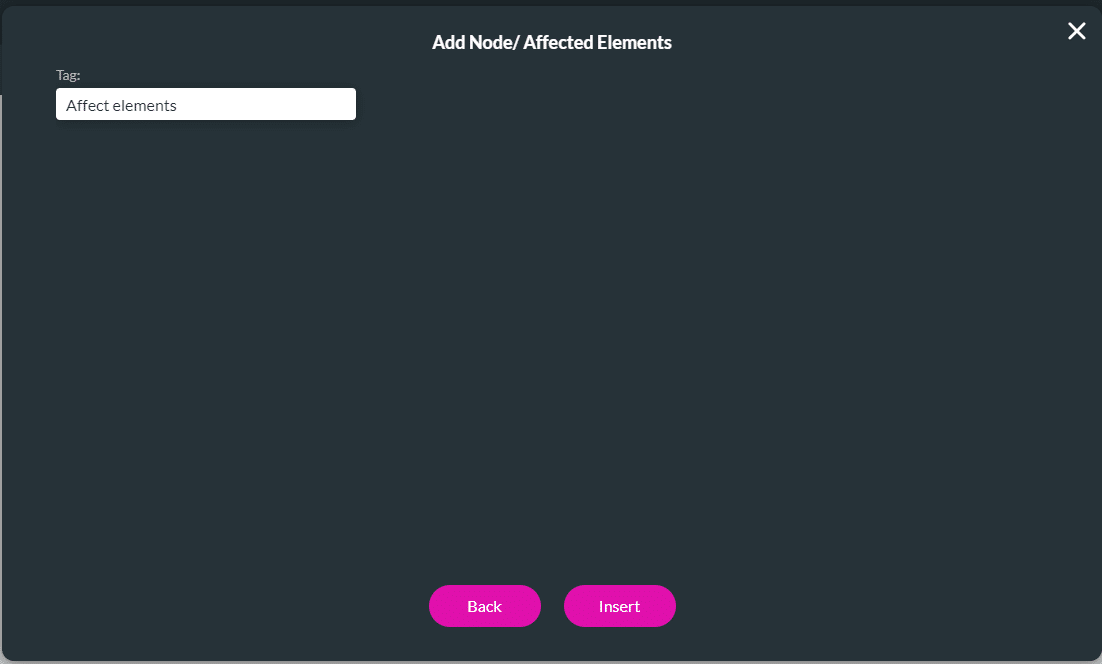
- If required, change the tag and click the Insert button. The node is added to the screen.
- Click the Apply button.
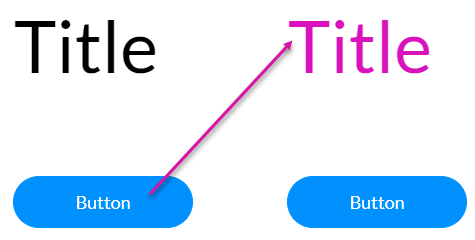
- Save and Preview the project.
When the button is clicked, the color of the affected element changes.
Set background color
This option will change the fill of the element.
- Use the drop-down list to select the Set background color option.
- Use the color selector to choose a color or enter the code in the field. In this example, Button B’s background color will change.
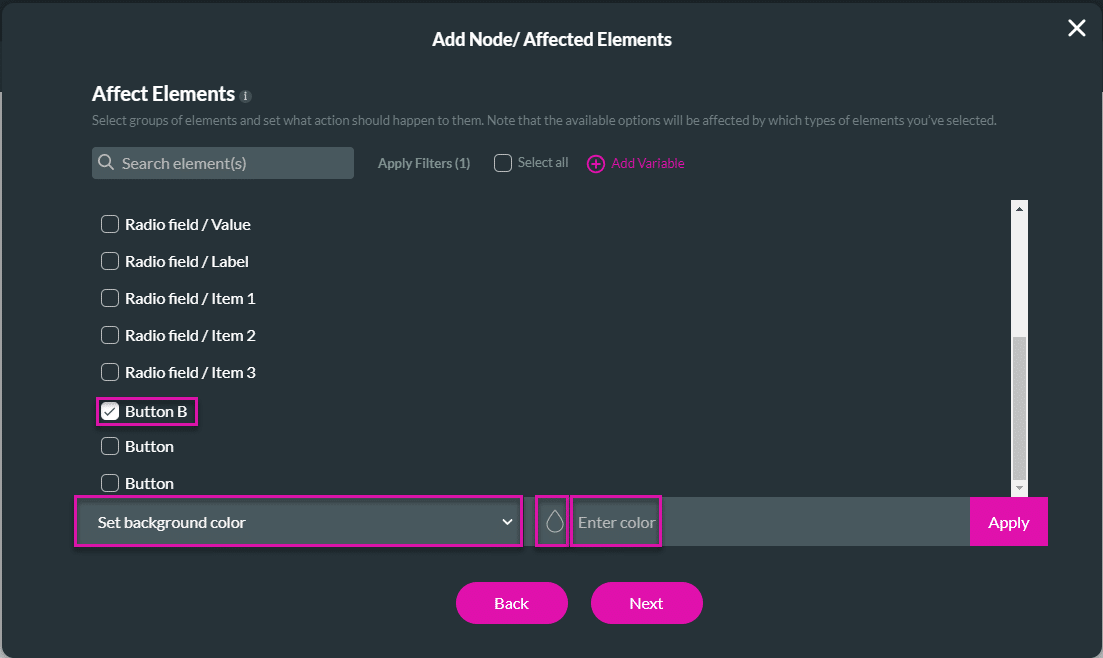
- Click the Apply button. The tag “Set background color [code]” is added to the selected element/s.
- Click the Next button.
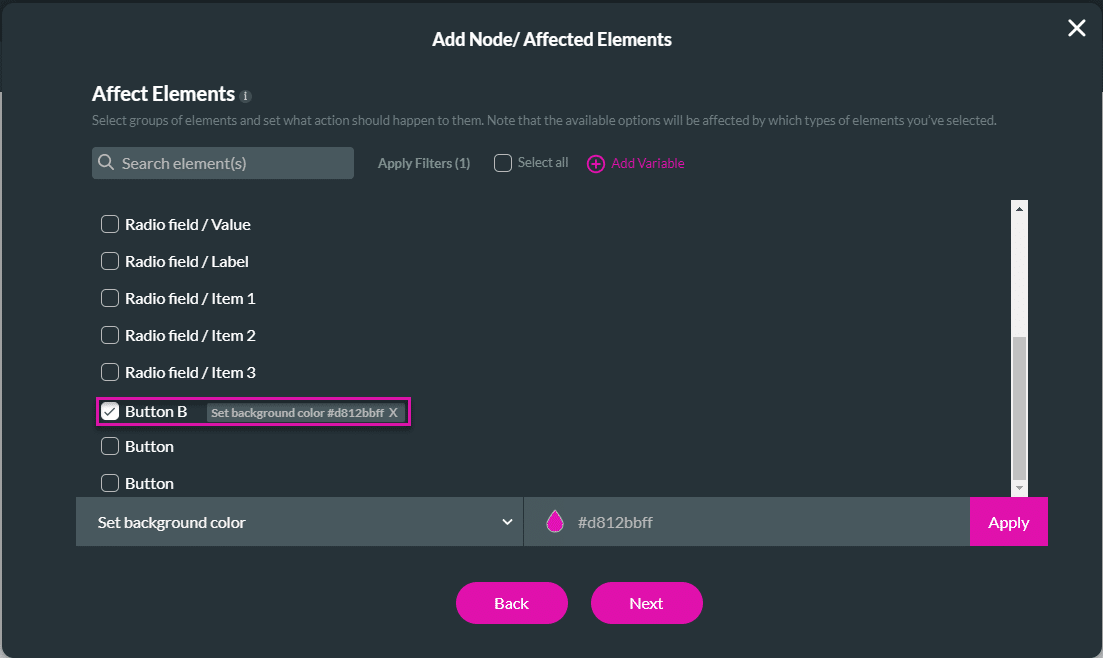
- If required, change the tag and click the Insert button. The node is added to the screen.
- Click the Apply button.
- Save and Preview the project.
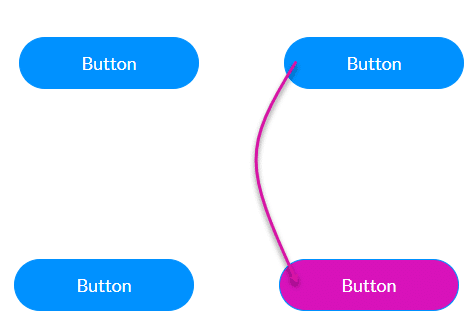
When the top button is clicked, the bottom button’s background color changes.
Note:
Protip:
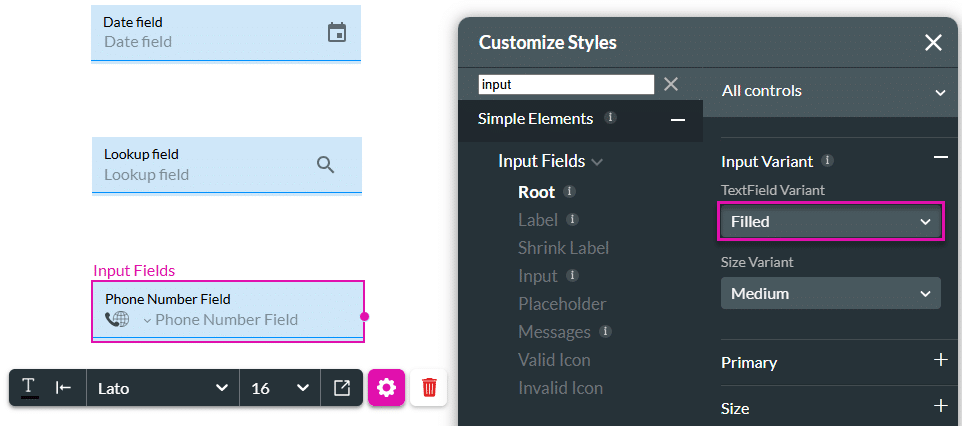
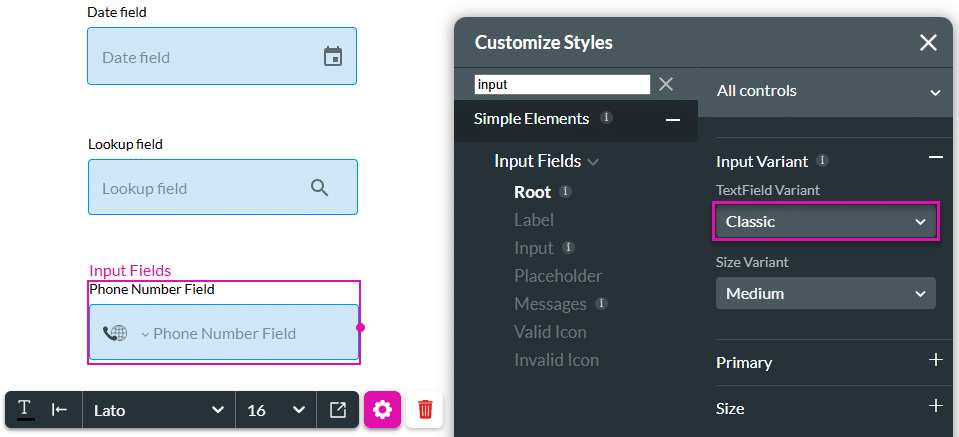
You can only change the background color for element variant types “Filled” and “Classic”.
Filled:
Classic:
Hidden Title
Was this information helpful?
Let us know so we can improve!
Need more help?
Book Demo